Resource Vault
Connecting to Xero
This guide is designed for non-technical operators who want to connect Claude Code to Xero, test the API, send a sample payload, and prove the integration works.
Table of Contents
Claude Dangerously Skip Permissions
Start Claude in the open terminal first
Start here before touching Xero, Mercury, Deel, or any finance prompt. This keeps the rest of the guide consistent and gives you the easiest copy-paste path.
claude --dangerously-skip-permissionsPro Tip
Use a Xero Custom Connection
Recommended connection type
For this setup, use a Xero Custom Connection. It is the best fit when you only need one organisation and want the most persistent machine-to-machine connection Xero supports.
This is the path you should use
Use a Xero Custom Connection.
Do not use standard OAuth for this guide.
Do not spend time trying to find an API key. Xero does not support API keys.
Purchase URL: https://connect.xero.com/custom
Price: $5/month for the Custom Connection.
Why this is the right choice
Custom Connections are designed for single-organisation machine-to-machine integrations.
They use the client credentials flow, so you do not need to manage refresh tokens.
You can request new access tokens without user interaction whenever you need one.
You also do not need the `xero-tenant-id` header for API calls on a Custom Connection.
Use this prompt if you want Claude to explain the recommendation
This prompt is only for explanation, not for choosing between multiple paths.
Explain why a Xero Custom Connection is the correct setup for this project.

Assume:
1. We only need one Xero organisation
2. We want the most persistent machine-to-machine connection Xero supports
3. We want to read and write as much data as possible
4. We do not want a multi-organisation app

Explain:
1. Why Custom Connection is better than standard OAuth here
2. Why an API key is not available in Xero
3. Why client credentials is the best practical option
4. What the next 3 setup steps areCreate the Xero app with maximum scopes
Create the app in Xero Developer
Go to developer.xero.com and sign in.
Create a new app.
Choose Custom Connection.
Use the email address of the actual authorising user for that Xero organisation.
If the organisation has not purchased the Custom Connection yet, buy it here first: https://connect.xero.com/custom
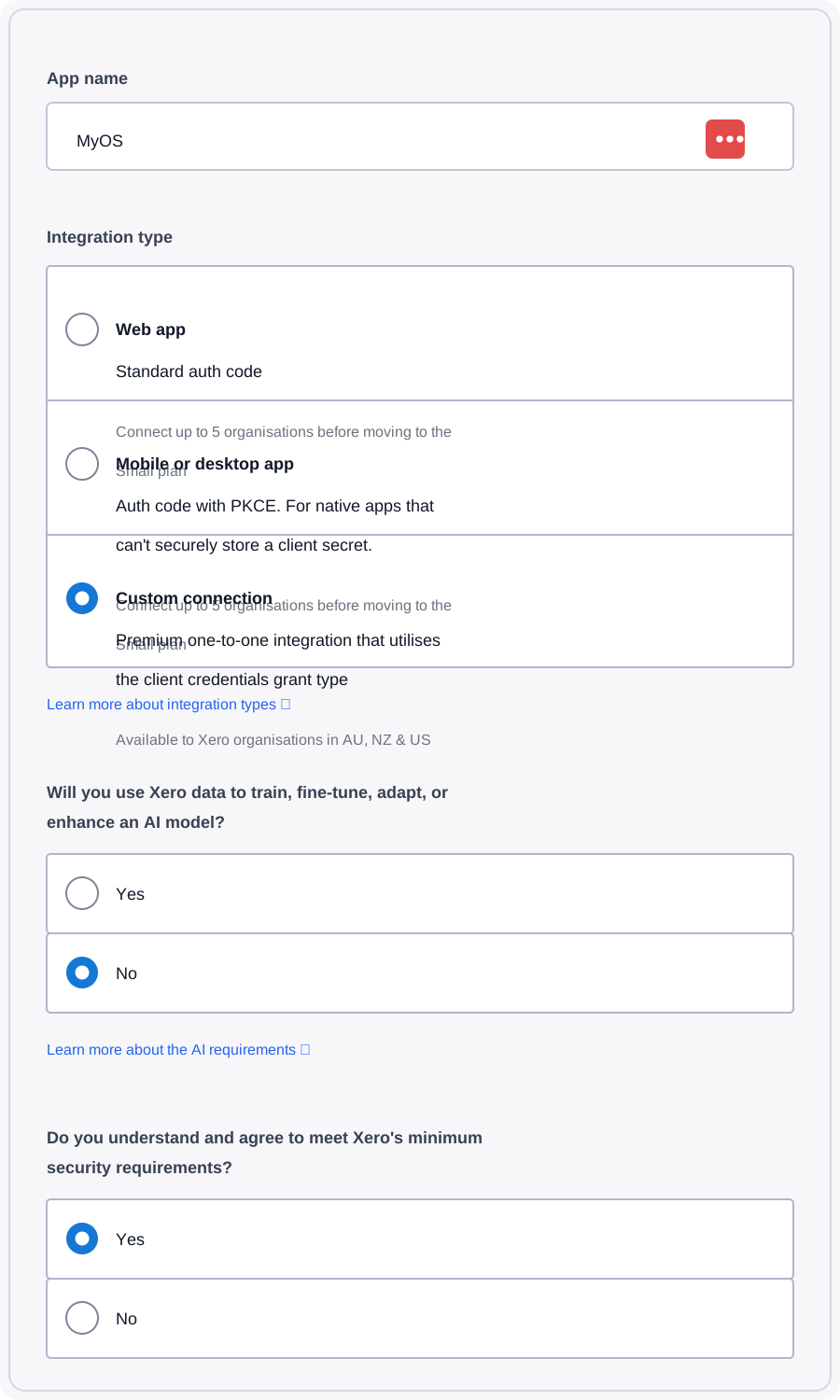
Fill in the first Xero app screen exactly like this
App name: Enter `MyOS`.
Integration type: Select `Custom connection`.
Will you use Xero data to train, fine-tune, adapt, or enhance an AI model? Choose `No`.
Do you understand and agree to meet Xero's minimum security requirements? Choose `Yes`.
App name:
MyOS

Integration type:
Custom connection

Will you use Xero data to train, fine-tune, adapt, or enhance an AI model?
No

Do you understand and agree to meet Xero's minimum security requirements?
Yes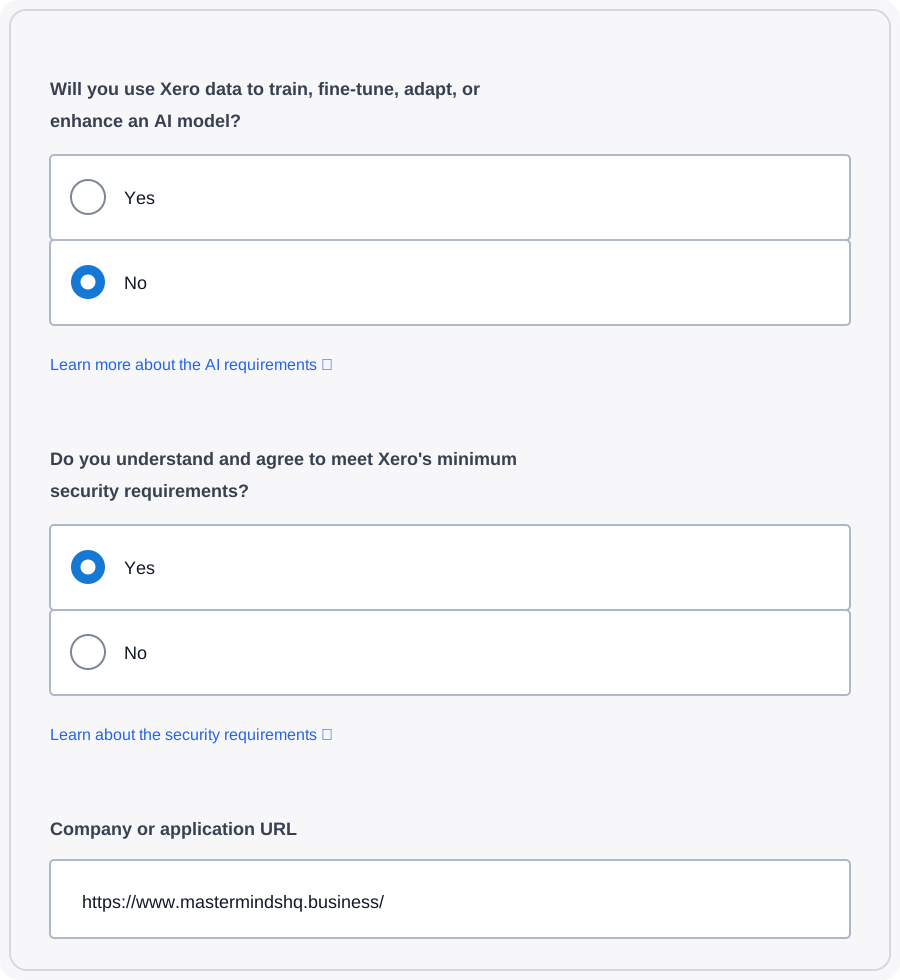
Fill in the second Xero app screen field by field
Company or application URL: Enter `https://www.mastermindshq.business/`.
OAuth 2.0 redirect URI: If Xero does not show a redirect field on your screen, skip it. This screenshot reflects that state.
Terms and Conditions checkbox: Check it after reviewing the platform terms.
Create app: Click `Create app` once everything is filled in.
Company or application URL:
https://www.mastermindshq.business/

Terms and Conditions:
Check the box

Then click:
Create appPick the maximum scopes you can get
In this setup, do not optimize for minimum access. Optimize for full operational coverage.
Select every Xero scope available to the app that is relevant to accounting, contacts, invoices, bills, bank data, files, assets, projects, settings, payroll, and any other write-capable areas shown in the UI.
If Xero exposes a scope in the Custom Connection setup screen and it could plausibly help with creating, updating, reading, reconciling, or deleting data later, include it now.
The authorizing user still needs the appropriate Xero permission level. Payroll endpoints require a payroll admin.
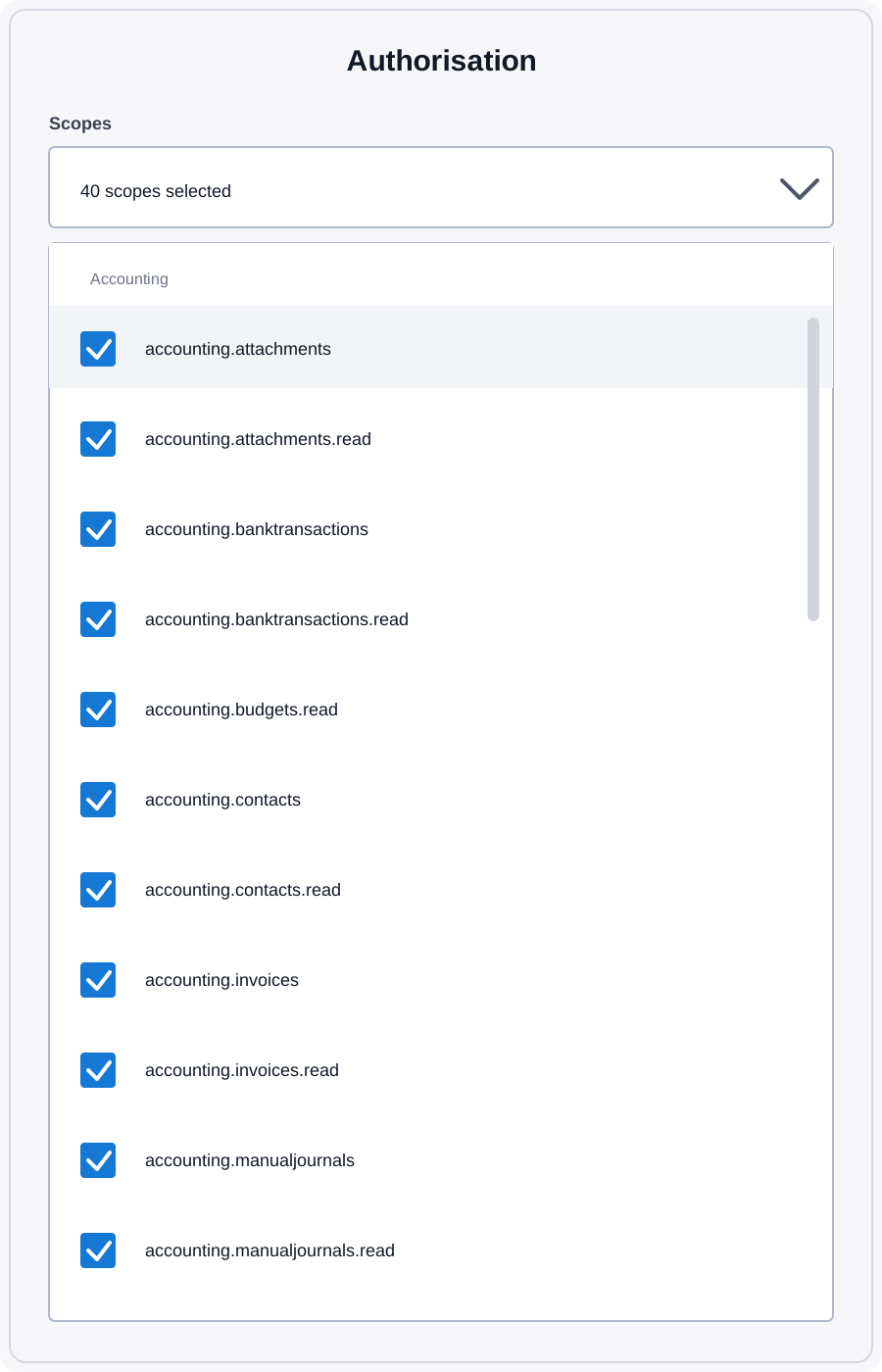
What to do on the scopes screen
Scopes: Check all available scopes.
Do not curate them: This setup is intentionally broad so you can read, write, sync, test, and automate without coming back to re-authorize later.
If you see a count like `40 scopes selected`: That is the right direction. The goal is full coverage.
On the Xero scopes screen:

Check every available scope.

Do not leave any unchecked unless Xero itself prevents it.

Goal:
- maximum read access
- maximum write access
- invoices
- bills
- contacts
- bank transactions
- attachments
- files
- payments
- journals
- payroll
- settings
- any other available Xero scopesUse this prompt to request the broadest scope set
This prompt is for maximum-scope selection, not minimum-scope selection.
Recommendation: use Custom Connection, not OAuth
Use Custom Connection.
Xero does not offer API keys.
Custom Connection with client credentials is the most persistent option Xero supports for this use case.
It is better than standard OAuth here because there are no refresh tokens to manage and no repeated user login flow for normal token renewal.
Authorize the app from your email
After you create the app and set the scopes, Xero sends an authorization email to the authorizing user.
Open that email inbox.
Find the Xero authorization message and click through the approval flow.
The Custom Connection is not actually active until this email authorization step is completed.
After creating the Xero app:

1. Go to the email inbox of the authorizing user
2. Find the Xero authorization email
3. Open it
4. Approve / authorize the app
5. Return to Xero and confirm the Custom Connection is now active
Note
Save the credentials you will need
Copy the client ID and client secret into a secure place.
Only do this after the email authorization is complete.
Once active, this connection will let you request fresh access tokens on demand with client credentials.
Heads Up
Have Claude create a local test harness
This prompt should generate the local `.env.example`, test script, and the exact variables you need to paste.
Verify the API with a read test
Run a read-only proof before attempting any writes
First prove that the token works.
For this Custom Connection flow, prove that token generation and a simple read endpoint both work.
Do not try to write data until a simple read request succeeds.
Use this prompt to run the verification flow
This prompt should end with a clear success or failure summary, not vague OAuth advice.
Now verify the Xero connection end to end.

Checklist:
1. Confirm the env variables are loaded correctly
2. Request an access token
3. If standard OAuth is in use, fetch the connected tenant information
4. Call a simple read endpoint first
5. Then call one finance-relevant endpoint such as:
   - Organisation
   - Accounts
   - Contacts
   - Invoices
6. Summarize:
   - what worked
   - what failed
   - what exact next step is needed

If an error happens, diagnose it precisely instead of giving generic OAuth advice.Note
Data format and sample write payloads
Understand the shape Xero expects before you send data
Xero does not want random CSV columns or loose JSON blobs. It expects structured payloads that match the target object, such as a Contact or an Invoice.
Starter contact payload format
{
  "Name": "Sample Contact",
  "FirstName": "Sample",
  "LastName": "Contact",
  "EmailAddress": "sample@example.com",
  "Addresses": [
    {
      "AddressType": "POBOX",
      "AddressLine1": "123 Example St",
      "City": "New York",
      "Region": "NY",
      "PostalCode": "10001",
      "Country": "USA"
    }
  ]
}Starter invoice payload format
This is the kind of structured JSON Claude should prepare before attempting a proof write.
{
  "Type": "ACCREC",
  "Contact": {
    "Name": "Sample Customer"
  },
  "Date": "2026-05-10",
  "DueDate": "2026-05-24",
  "Reference": "DEMO-001",
  "LineAmountTypes": "Exclusive",
  "LineItems": [
    {
      "Description": "Sample strategy package",
      "Quantity": 1,
      "UnitAmount": 1000,
      "AccountCode": "200",
      "TaxType": "OUTPUT"
    }
  ],
  "Status": "DRAFT"
}Use this prompt to inspect the live format before any write
This prevents Claude from guessing wrong if the target organisation has specific tax types, account codes, or field requirements.
Inspect the live Xero response shape before preparing any write payload.

Do the following:
1. Fetch a small sample from the most relevant endpoint for this task
2. Show me the exact fields that appear in the live response
3. Identify any required IDs, account codes, tax types, or enum values
4. Compare that with the sample payload I plan to send
5. Tell me what must be changed before a write call is attempted

Do not perform any write yet.Prompt kits to prove the connection works
Create a proof write without posting live data immediately
First have Claude prepare the request body.
Review it yourself.
Only then let Claude send the write call.