Before Session Four
Get Your Brain Dump Ready
Do these steps at least two days before the session. The export emails from ChatGPT and Claude can take up to 48 hours to arrive.
Don't have ChatGPT? Don't use Claude much yet? No problem. Even one export file is enough to get started. Do what you can.
On This Page
- 1.Export from ChatGPT
- 2.Export from Claude
- 3.Gather your online presence
- 4.Download Claude on your phone and log in
- 5.Make sure your Resend domain is verified
Export from ChatGPT
Do this 2 days earlyChatGPT has a built-in export tool. It emails you a download link within 24-48 hours, so request it now.
Don't have ChatGPT? Skip this section.
- Go to chatgpt.com and log in
- Click your profile icon in the bottom-left corner, then click Settings
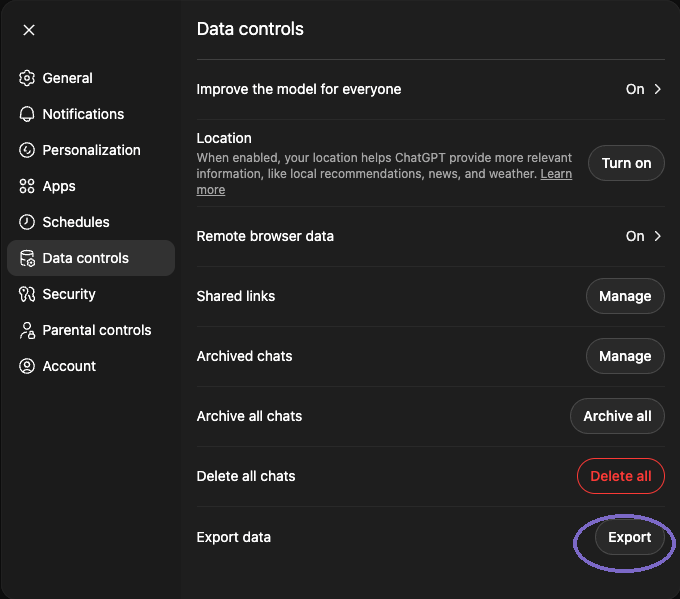
- In the sidebar, click Data controls
- Scroll to the bottom and click the Export button next to “Export data”
- A confirmation email will arrive in your inbox within a few minutes to a few hours
- When the email arrives: click the download link, then unzip the file you receive
- Inside the zip you will find a file called
conversations.json— keep this handy for the session
Note
Export from Claude
Do this 2 days earlyClaude's export tool lives in your Privacy settings. It works the same way: you request it, they email you the file.
Don't use Claude much yet? Skip this section.
- Go to claude.ai/settings/data-privacy-controls
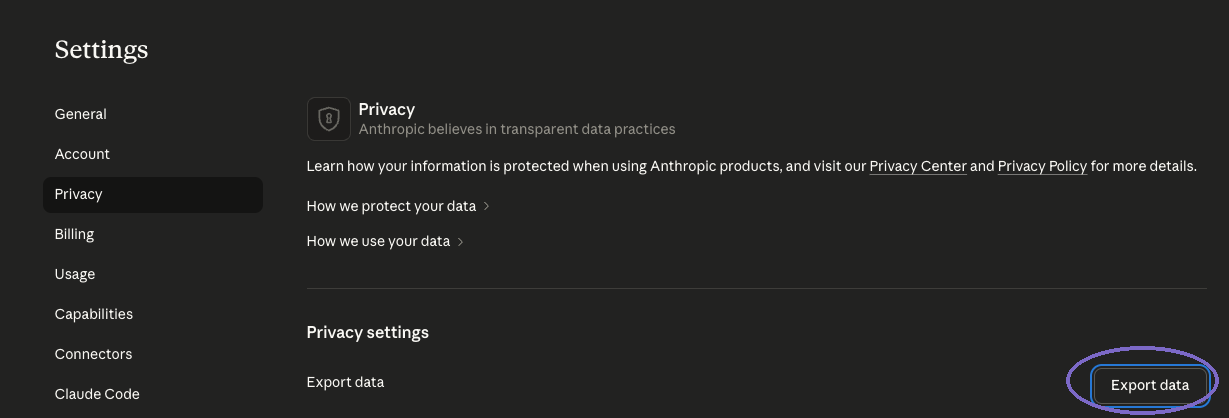
- In the sidebar, click Privacy
- Scroll to Privacy settings and click the Export data button on the right
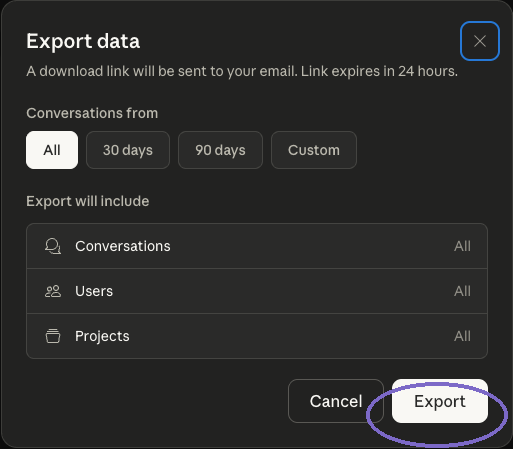
- A dialog will appear. Make sure All is selected under “Conversations from”
- Click the white Export button
- Check your email for a download link (arrives within a few hours, sometimes up to 48 hours)
- Download the file and unzip it when it arrives. Keep it ready for the session
Note
Gather your online presence
Before the sessionWe will feed your social media and website URLs into your Brain Dump so Claude knows where to find you online. Take two minutes now to collect these links.
Don't have some of these? No problem. Skip the ones that don't apply.
Open a notes app and paste in any of the following you have:
- •Your main website URL
- •Instagram profile URL
- •Facebook profile or page URL
- •LinkedIn profile URL
- •Any other platforms you use: TikTok, Twitter/X, YouTube, etc.
You will paste these into a prompt during the session. Having them ready saves time and means Claude gets a more complete picture of you.
Download Claude on your phone and log in
Before the sessionWhat it is: Claude has a free mobile app for both iPhone and Android. In this session you will use it to continue conversations from your laptop, run slash commands on the go, and see how much you can accomplish without ever opening a computer.
- Download the app from the store above
- Open a tab, log in using the same account you use on your laptop
- Complete the verification if prompted
- Confirm the app opens and shows your account name
Note
Make sure your Resend domain is verified
Before the sessionIn Session 3 you created a Resend account. In this session you will use it to send yourself a daily email of fresh hook ideas. For that to work, your domain needs to be verified, or sandbox mode needs to be active.
Option A: Full domain verification (preferred)
If you verified your domain in Session 3, you are all set. Log into Resend Domains and confirm your domain shows a green “Verified” status. If it is not verified yet, do it before the session, DNS changes can take up to 24 hours to propagate.
Option B: Sandbox mode (works for today)
If your domain is not verified, sandbox mode lets you send emails to yourself for testing. You can only email your own verified address, but that is enough for the session exercise. No setup needed, sandbox is on by default in new accounts.
Heads Up
If you get stuck on any of the export steps, reach out before the session and someone will help.
Using Codex instead of Claude Code? Codex version of this page