Session Four
Creating Your Second Brain and Putting It in Your Pocket
We are going to take everything you have ever told an AI and turn it into an organized folder that Claude Code can read. By the end of this session, Claude will know who you are, what you are building, and what matters to you.
Workshop Recording
Follow along with the live session. Hit play and the video will stick to the top as you scroll.
Part A: Open Claude Code
Open your Terminal
On a Mac:
Press Cmd+Space, type Terminal, and press Enter.
On a PC:
Press the Windows key, type Command Prompt, and press Enter. Or press Win+R, type cmd, and press Enter.
Start Claude Code and skip permissions
Type this command and press Enter:
claude --dangerously-skip-permissionsThis tells Claude it can create files and folders without asking for your approval at every step. The Brain Dump touches a lot of files, so without this, Claude will pause and ask you to confirm each one. We do not want that.
Part B: Giving Your Orchestration Agent a Personality
Joe’s orchestration agent is called Uni. Yours is about to get a name. This is the moment where you start building the three files that make Claude feel personal: your SOUL.md, your USER.md, and a CLAUDE.md that actually fits your setup.
Build your own version of Joe’s setup
Joe's full template lives here: Ultimate CLAUDE.md. Do not copy it blindly.
Do not copy his setup word for word. Use it to help Claude name your agent, write its soul, create your USER.md, and build a CLAUDE.md that matches how you actually want to work.
Pro Tip
Part C: Run your Brain Dump
Fill in your URLs at the top, paste the prompt into Claude Code, and press Enter. Then join the group discussion. Claude will work in the background while we mastermind.
Drag your export file into the window
Before the session, you were asked to export your conversation history from ChatGPT or Claude as a .zip file.
Now simply drag that zip file directly into the Terminal window where Claude Code is running. That is it. Claude will see the file and know what to do with it.
Note
Paste and run the Brain Dump prompt
Fill in your URLs at the top, then copy the whole thing and paste it into Claude Code.
Pro Tip
Part D: Review, load context, and test it
Once Claude finishes processing, work through the steps below.
Review your brain_dump_map
Open the folder Claude just created and check what is in there.
Create your USER.md automatically
Now that your brain dump exists, have Claude turn it into a clean USER.md automatically. This file should summarize who you are, what you are building, and how Claude should work with you, using your brain dump as the source material.
Pro Tip
Load your context
The Brain Dump just updated your CLAUDE.md with a Personal Context section. Paste this prompt and Claude will load it now as your context for this session and treat it as your standing context for future sessions too.
Please read my CLAUDE.md file and treat it as my context and default instructions for this session and for all new sessions or new context going forward.This makes CLAUDE.md the anchor file Claude should always read when loading your work context, unless you explicitly say otherwise.
Ask Claude about yourself
Now test it. These questions can only be answered if Claude properly read your Brain Dump. Try them one at a time and see what comes back.
Tell me about the projects I am currently working on.Tell me the things I am most curious about.Tell me my astrological sign.What was the last idea I got excited about?Who are my most important clients or collaborators?What should I focus on to move my business forward?Anything it does not know, let it ask you. Paste this prompt and Claude will interview you to fill in the gaps:
Back it up: Move brain_dump_map from your Desktop to Dropbox or Google Drive when you get home. We will use it again in a future session with All Sorted.
Part E: Claude on Your Phone
This session lives on your phone permanently. It becomes your portal — a quick way to reach your brain dump, ask your agent a question, or keep working when you are away from your laptop. You do not close it. You leave it open forever.
Rename your session in the terminal
In Claude Code, run this command with your own name at the end:
Replace [YOUR NAME] with your actual name — something like Sarah or Sarah’s AI Work. This is the session you will come back to from your phone.
Pro Tip
Find that session on your phone
Open the Claude app on your phone. Tap the menu icon at the top left to open the sidebar.
Tap Code (the </> icon). You will see a list of all your Claude Code sessions by name. The one you just renamed will be right at the top.
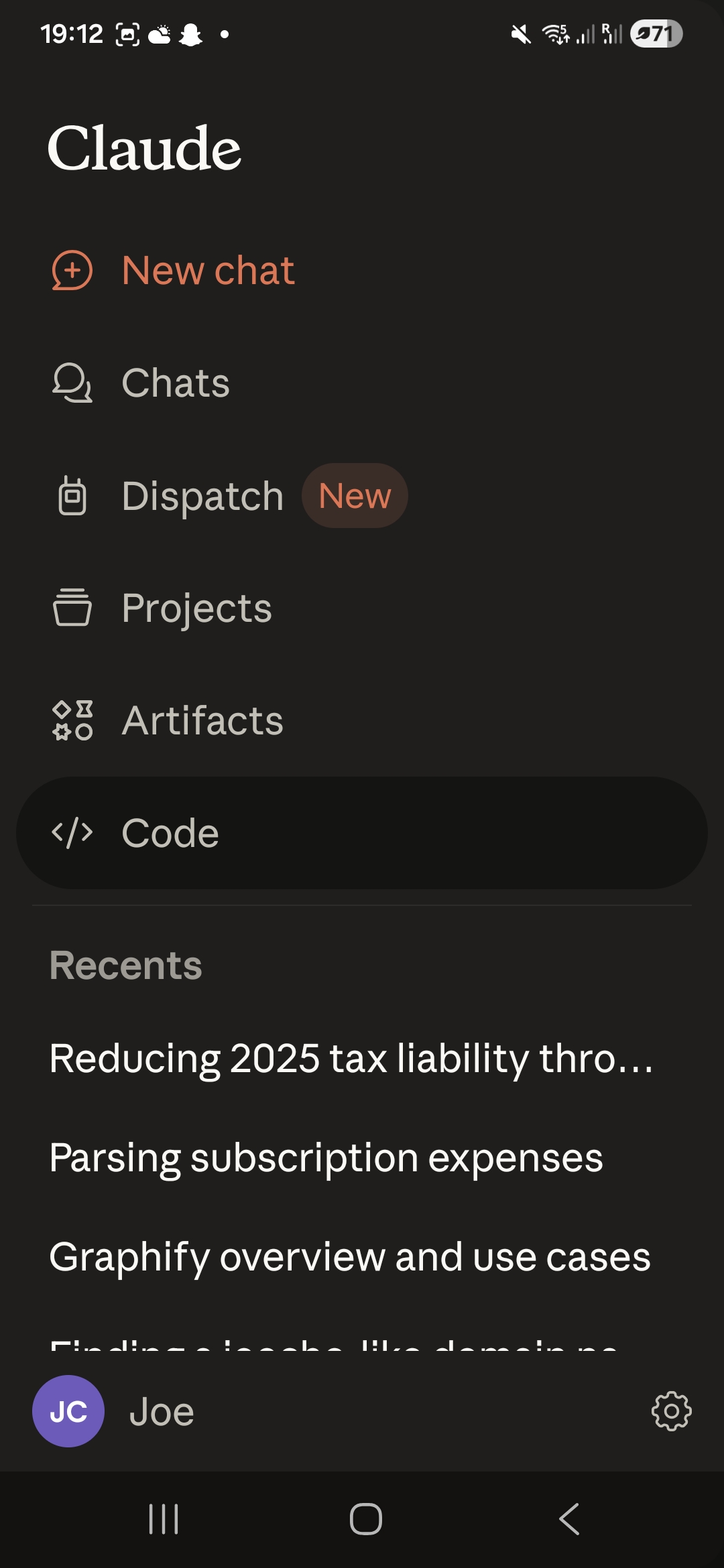
Tap Code in the sidebar
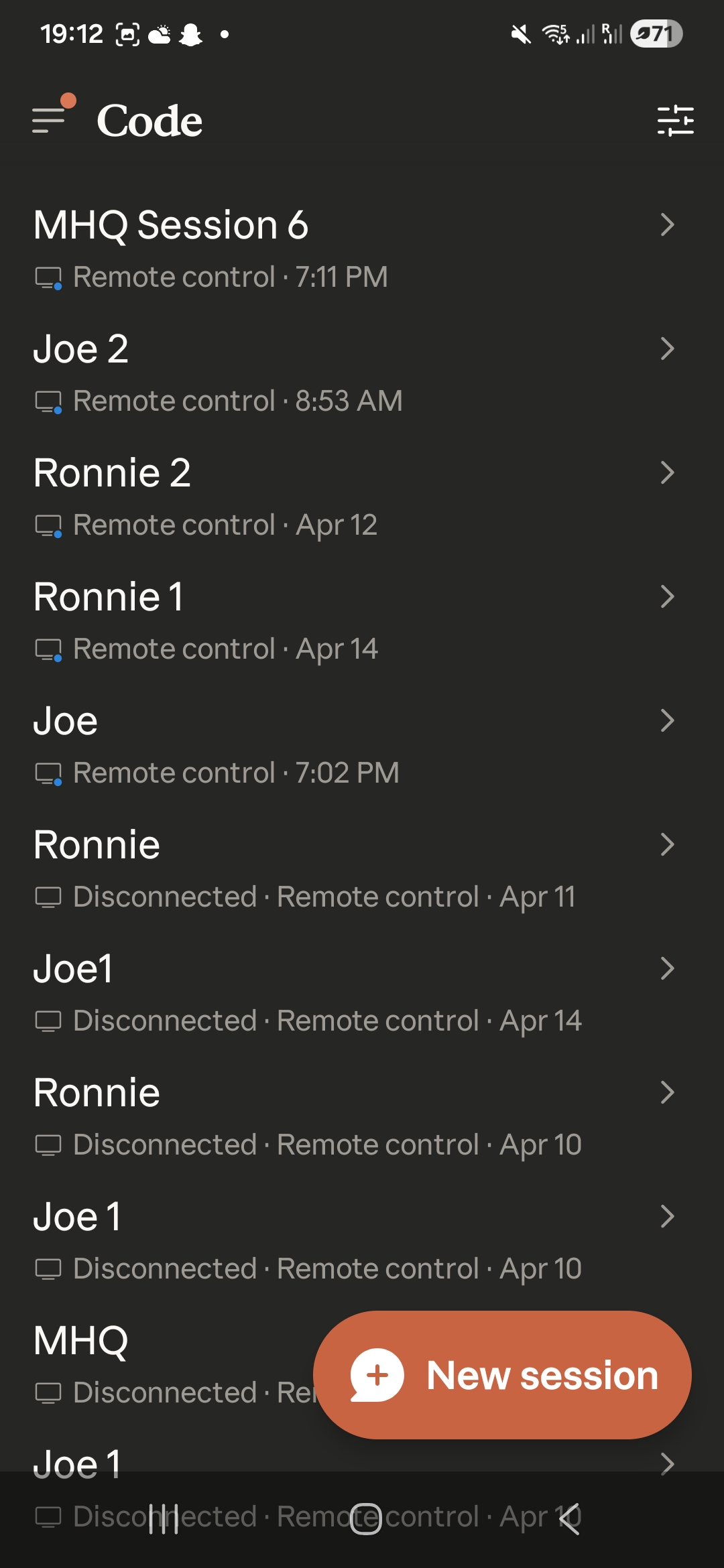
Your sessions listed by name
Tap your session. You are now in the same session you were working in on your laptop, synced in real time.
Note
Try a slash command on your phone
Tap into the message field, then type a forward slash /. A menu of your installed skills appears. Tap any skill to run it.
Try /speak-human — you will use it in the next session to build your voice profile.
Note